LAMMPS on Windows
LAMMPS supports building executables for Windows in four ways:
- Compile LAMMPS natively within Visual Studio version 2022 or later using the CMake build system.
- Compile and run LAMMPS within a Linux virtual machine using the Windows Subsystem for Linux (WSL).
- Compile native Windows executables using command-line compilers (MinGW, Cygwin, MSVC++, Intel) and CMake.
- Compile native Windows executables using a Linux-to-Windows cross-compiler toolchain on Linux (e.g. on Fedora Linux).
Details are in the Windows section of the LAMMPS manual.
The LAMMPS download server hosts pre-compiled Windows installers built with the MinGW64 cross-compiler toolchain on Fedora Linux using the standard LAMMPS sources.
The LAMMPS binaries contain most optional packages included in the source distribution. Currently not included are:
- ADIOS (requires an external library)
- H5MD (requires an external library)
- INTEL (requires Intel compilers to be faster than OPENMP)
- FENIX (requires an external library)
- KIM (not yet fully ported to Windows cross-compilation)
- MBX (incompatible license, available as plugin soon)
- ML-PACE (available as plugin)
- ML-QUIP (not fully ported to Windows)
- NETCDF (requires an external library)
- PLUMED (available as plugin)
- QMMM (only useful when linking to a QM software)
- QMMM-XTB (requires an external library)
- SCAFACOS (requires an external library)
The serial (non-MPI) executable additionally does not contain the LATBOLTZ package, since it requires MPI-IO functions, which are not available without linking to a real MPI library.
Python support
 The LAMMPS Python module
(to call LAMMPS from Python) is included in all installer
packages, together with the LAMMPS shared library (
The LAMMPS Python module
(to call LAMMPS from Python) is included in all installer
packages, together with the LAMMPS shared library (liblammps.dll) it
needs. The module is placed in a folder listed in the PYTHONPATH
environment variable, so it can be imported into a suitable Python
interpreter of your own without any additional setup. This has been
tested with the Python interpreters bundled with Microsoft Visual
Studio and those downloaded from python.org, but
it should work with any 64-bit x86 Python interpreter. The installer
packages do not include a Python executable for standalone use.
The PYTHON package (to call Python from LAMMPS), however, is only included in the installer packages with Python in the name. Those packages also include a full Python runtime environment with all standard Python modules and the NumPy module, since those have to be consistent with the Python library used to compile LAMMPS. Python functions or classes called from LAMMPS may also import the LAMMPS Python module.
Virus scanners reporting a Trojan or virus
Sometimes Microsoft Defender or other virus scanners will report that the LAMMPS installer packages contain a Trojan or virus. If you downloaded the installer from this website and the SHA-256 checksum matches, then the report is most likely a false positive. This can happen with installer packages like the ones provided here, since they are applications with interpreted byte code that triggers the false positive. The installer packages are created with a cross-compiler on a protected Linux machine using authenticated development tools, so it is close to impossible to produce infected packages.
If you come across such a case, please report the false positive to the
antivirus
vendor.
You can usually then tell the virus scanner software to ignore the virus
report and execute or restore the installer package anyway and install
LAMMPS. However, we only recommend doing this if you downloaded the
package from the lammps.org domain and have verified the checksum to make
certain you have an unmodified file. We cannot prevent malicious people
from building LAMMPS installer packages that do contain malware, however
unlikely it may seem.
Changes to the installer packages
Starting with the 2 August 2023 stable release, we have reduced the number of compiled variants. All packages are 64-bit and install at user level. Microsoft MPI (MS-MPI) is the only supported MPI library.
GPU support
 These Windows binaries include GPU acceleration via the
GPU package.
This is achieved by compiling the GPU package in OpenCL mode and linking
to an OpenCL compatible ICD loader.
The included OpenCL loader library is compatible with OpenCL version 1.2
to 3.0. This means the executables do not contain any vendor-provided
code and should be compatible with current GPUs, provided they have
support for double precision floating point math. Notably, many recent
Intel GPUs (“Xe Graphics” family) only support single precision and thus
require custom compiled executables.
These Windows binaries include GPU acceleration via the
GPU package.
This is achieved by compiling the GPU package in OpenCL mode and linking
to an OpenCL compatible ICD loader.
The included OpenCL loader library is compatible with OpenCL version 1.2
to 3.0. This means the executables do not contain any vendor-provided
code and should be compatible with current GPUs, provided they have
support for double precision floating point math. Notably, many recent
Intel GPUs (“Xe Graphics” family) only support single precision and thus
require custom compiled executables.
If multiple vendor-provided OpenCL runtimes are installed, you may run
into the situation of the “wrong” runtime being set as the default and
used by LAMMPS. In this case, you may need to remove unwanted vendors
from the Windows registry. Look for the key
HKEY_LOCAL_MACHINE\SOFTWARE\Khronos\OpenCL\Vendors and remove vendors
with non-functional OpenCL support. When reporting problems, please
always include the exact version of the installer and the output of
the ocl_get_devices tool.
LAMMPS-GUI
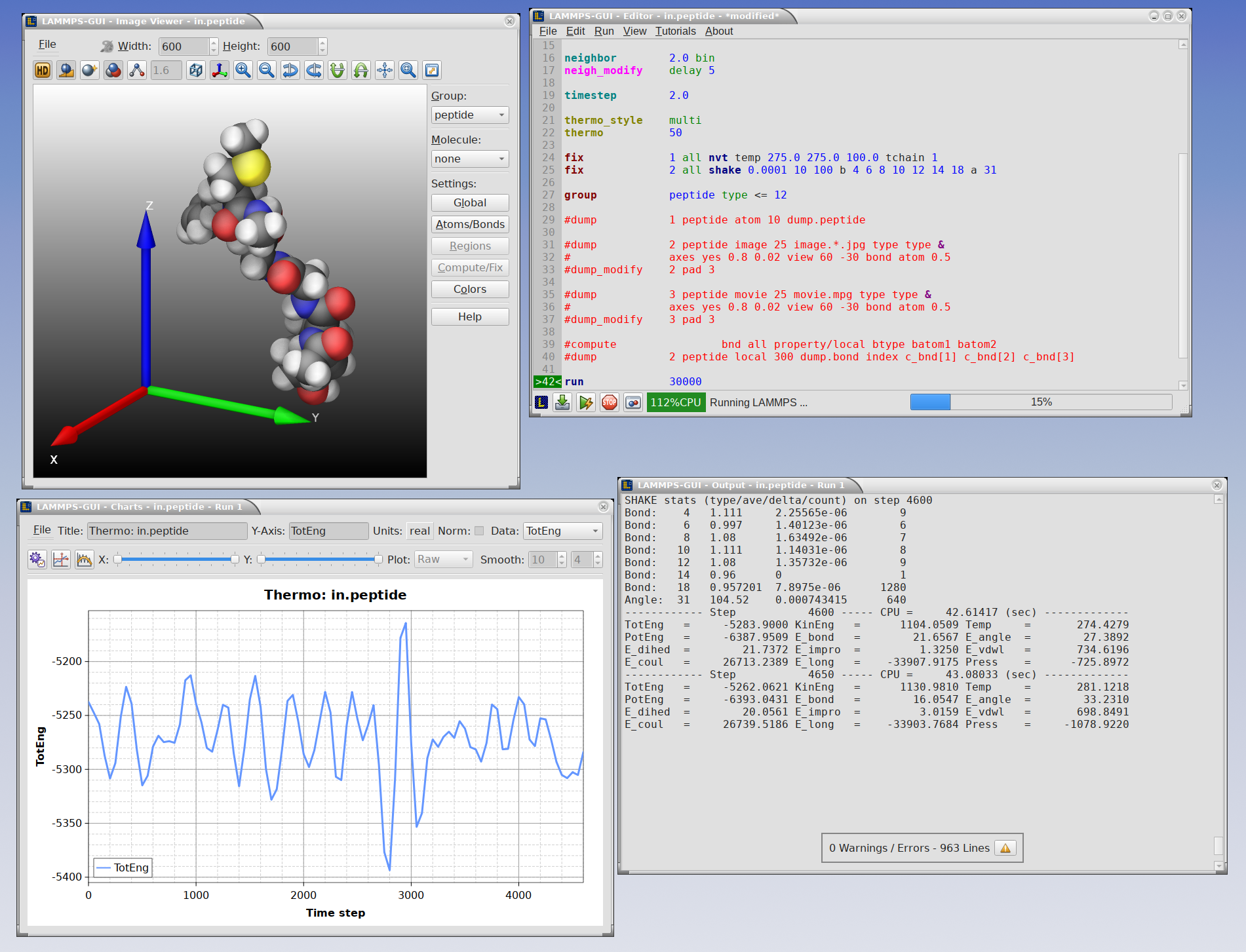
Installer packages with GUI in the file name also include the LAMMPS-GUI application. LAMMPS-GUI is a graphical text editor with syntax highlighting, auto-completion, inline help, and indentation support for LAMMPS input files. It is programmed using the Qt Framework and customized for running, monitoring, and visualizing LAMMPS simulations. It calls LAMMPS directly using the LAMMPS library interface instead of launching an external LAMMPS executable. Therefore it can retrieve and display information from LAMMPS while it is running and immediately display visualizations created by a dump image command in the input. Also, LAMMPS-GUI is fully integrated with the official LAMMPS tutorials
Installing LAMMPS on Windows
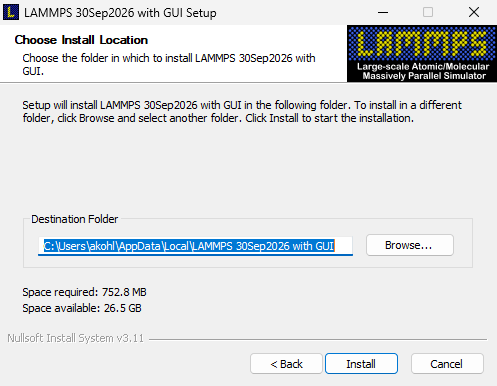
The installer packages are in the Windows
folder of the LAMMPS
download server. It has one sub-folder per LAMMPS release, named by its
date (e.g. 2026-09-30), with the installer packages for that version
and a SHA256SUM file with their checksums. Selected older versions
are available there as well. In addition, packages labeled latest or
stable always contain the most recent feature or stable release,
respectively. It is usually recommended to download and install a
latest package to have the latest features and functionality.
Download the installer executable suitable for your machine, execute it,
and follow the instructions in the dialogs. Each installer package
contains:
- Either a regular multi-threaded LAMMPS executable called
lmp. This should always work. - Or a multi-threaded LAMMPS executable that also supports
parallel execution via MPI message passing (packages with MSMPI in the
name). This executable is also called
lmpand requires installation of MS-MPI (see below) to work. - LAMMPS-GUI, if indicated by the file name
- the LAMMPS manual in PDF format
- the colvars reference manual in PDF format
- the potential files bundled with the LAMMPS source code
- most of the example inputs, reference outputs and related files
- the benchmark inputs and reference outputs
- the tools
binary2txt,chain,msi2lmp,plumed,abf_integrate,createatoms,ocl_get_devices,phana,find-symmetry, andstl_bin2txt
The executables will run in serial when executed directly. Please see below for instructions on how to perform parallel runs.
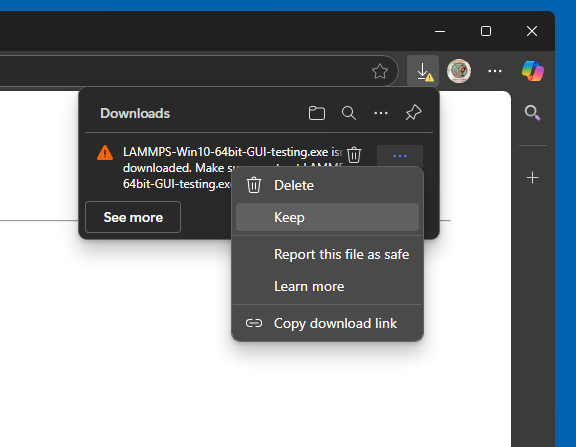
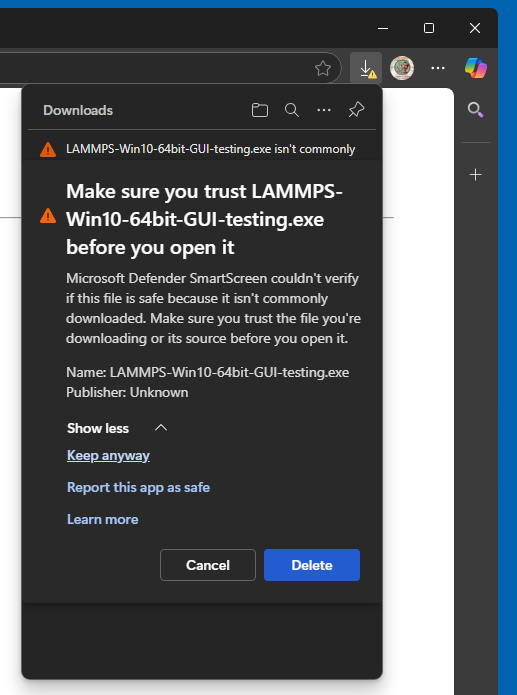
After downloading an installer package, you need to execute it, and start the installation process. Depending on the security settings of your web browser, you may have to explicitly tell it to download the file and then confirm twice to keep the downloaded file despite the claims that it may be dangerous and insecure. The main reason for that is that one needs to pay for being a registered developer and obtain a corresponding cryptographic signature to sign the binaries with.
Since this check is performed by the web browser, you can avoid it by opening a command prompt terminal window, change to the Downloads folder and then download the installer from the command line, for example with:
curl -OL https://download.lammps.org/packages/windows/LAMMPS-Win10-x64-GUI-stable.exe
MPI support
To use the MPI-based parallelism in the provided installer packages, you
also need to install Microsoft MPI (MS-MPI), which can be downloaded
from the Microsoft
website.
You only need to download and execute the msmpisetup.exe installer,
which contains the runtime support. The additional download offered,
msmpisdk.msi, contains the files required to compile LAMMPS with
MPI and Visual C++ from source code; it is not required to run the
precompiled executables. If you prefer to compile LAMMPS from source
yourself, you can follow the instructions in the LAMMPS
manual for compiling
LAMMPS with Visual Studio.
Older versions of the LAMMPS binaries were compiled using a very old MPICH version from Argonne. As of the 2 August 2023 version, this is no longer supported.
Running LAMMPS on Windows
General comments
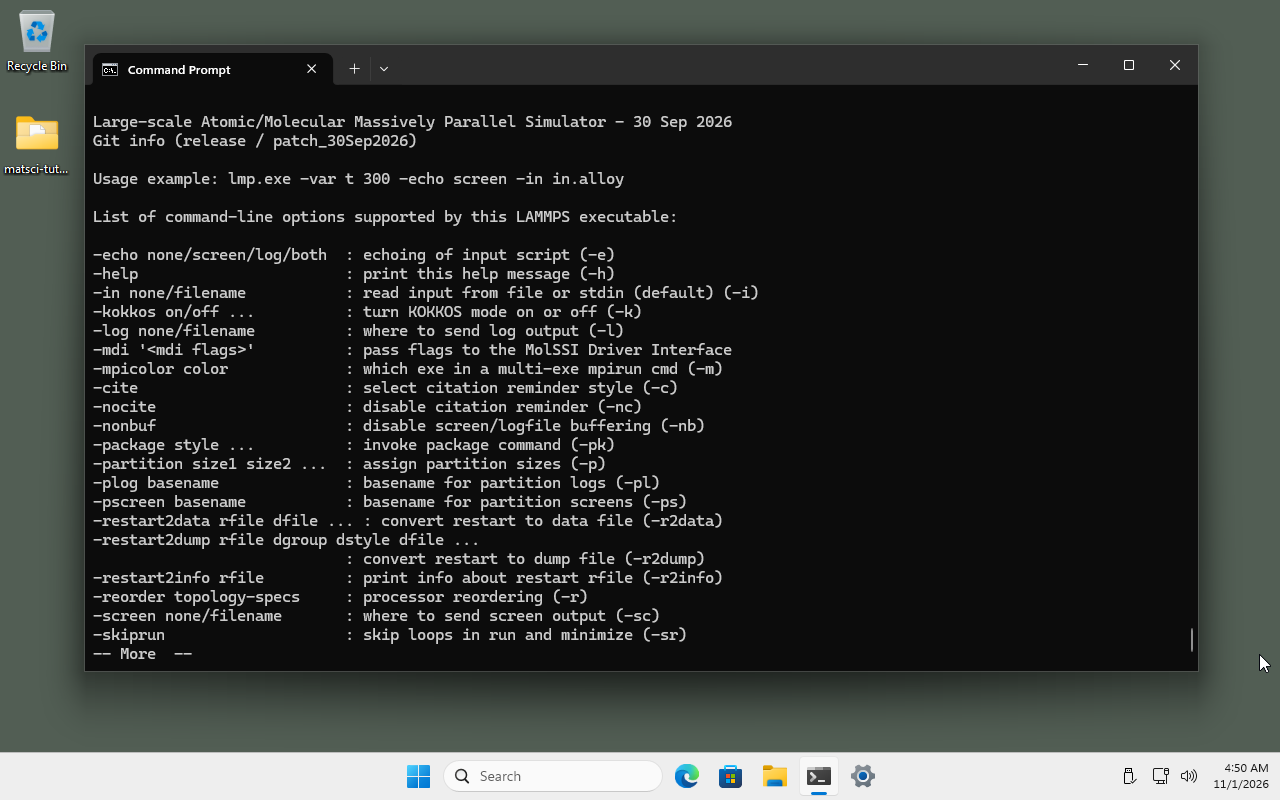
LAMMPS is a text mode program, so you have to click on the Terminal or Command Prompt entry in the Windows start menu (right-click on the Windows symbol), or type either term into the search box and open the offered application. As a first test you can type
lmp -h | more
The LAMMPS manual and the colvars reference manual in PDF format are
linked from the start menu, as are shortcuts that open the file explorer
on the Benchmarks and Examples folders. The PATH environment
variable is set automatically by the installer, so that the bundled
executables can be run from anywhere in the system. Also, the
LAMMPS_POTENTIALS environment variable is preset to the folder with
the bundled manybody potential files, so they do not need to be copied
into the respective working directory.
Serial execution
To run a LAMMPS simulation, open a console window as outlined above,
change to the directory with your input script, and then run lmp as
described in the LAMMPS manual. For more details and additional
command-line flags, please check out the LAMMPS
manual.
Multi-threaded parallel execution
All LAMMPS executables in the installer packages support multi-threading
via OpenMP, however by default only one thread is enabled. To enable
more threads, e.g. four, you need to either set it at the command-line
prompt via set OMP_NUM_THREADS=4, via the -pk omp 4 command-line
flag, or via the package omp 4
command in your input script.
After enabling the use of multiple threads, you also have to select
styles in LAMMPS that are multi-thread enabled. Those are usually
identified by the /omp suffix. Those can be selected explicitly and
selectively, or with the suffix
command, or – most conveniently – via the -sf omp command-line flag
to the LAMMPS executable. Example:
lmp -pk omp 4 -sf omp -in in.melt
Message passing (MPI) parallel execution
Only the executables from the installer packages with MSMPI in the name support parallel execution via MPI (which can be combined with OpenMP multi-threading). For that you also need to install MS-MPI from Microsoft, linked above.
MPI parallel executables have to be launched with mpiexec -n # lmp ...
or mpiexec -np # lmp ..., with “#” being the number of parallel
processes to start.
Known issues: while running in MPI parallel mode, any output to the
screen is block buffered and not line buffered as usual. That is, output
will not show up immediately, but only after a certain amount of output
has accumulated. This is done for efficiency reasons. Multi-threaded
parallel or serial runs are not affected. Also, when running under
mpiexec, you should not use multi-threading, since MS-MPI by default
restricts processes to a single physical CPU and thus it will run less
efficiently.